
Connect AI models with API keys
Add one API key per AI service in Lerix, then choose which models and access paths appear in the composer.
AI service connections live in Settings > Connections. Add one API key per service, keep only the models you want enabled, then choose the active model and access path from the composer model menu.
Supported AI services
| AI service in Lerix | Model family | Access in Lerix | Notes |
|---|---|---|---|
| ChatGPT | OpenAI GPT and Codex API models | API key | OpenAI also documents API-key authentication through bearer tokens. |
| Claude | Anthropic Claude | API key | Claude API keys are created in the Claude Console. |
| Gemini | API key | Gemini keys are created and managed in Google AI Studio. Lerix can also discover supported Gemini text models that are available through that key. | |
| Grok | xAI Grok | API key | xAI docs describe account creation, credits, and API keys in the xAI Console. |
| OpenRouter | OpenRouter Auto Router and compatible text chat models | API key | OpenRouter documents bearer-token API keys, a unified chat-completions endpoint, and a model-list API. |
Available models
The model list below is Lerix's built-in catalog. The AI service can still limit a model for an individual account, key, region, or billing state.
| AI service | Model in Lerix | Model ID | Access |
|---|---|---|---|
| ChatGPT | GPT-5.5 | gpt-5.5 |
API key or Codex auth |
| GPT-5.5 Pro | gpt-5.5-pro |
API key | |
| GPT-5.4 | gpt-5.4 |
API key or Codex auth | |
| GPT-5.4 Mini | gpt-5.4-mini |
API key or Codex auth | |
| GPT-5.4 Nano | gpt-5.4-nano |
API key | |
| GPT-5.2 | gpt-5.2 |
API key or Codex auth | |
| GPT-5.3 Codex | gpt-5.3-codex |
API key or Codex auth | |
| Claude | Claude Fable 5 | claude-fable-5 |
API key |
| Claude Sonnet 5 | claude-sonnet-5 |
API key | |
| Claude Opus 4.8 | claude-opus-4-8 |
API key | |
| Claude Opus 4.7 | claude-opus-4-7 |
API key | |
| Claude Opus 4.6 | claude-opus-4-6 |
API key | |
| Claude Sonnet 4.6 | claude-sonnet-4-6 |
API key | |
| Claude Haiku 4.5 | claude-haiku-4-5-20251001 |
API key | |
| Gemini 3.1 Pro | gemini-3.1-pro-preview |
API key | |
| Gemini 3.5 Flash | gemini-3.5-flash |
API key | |
| Gemini 3.1 Flash-Lite | gemini-3.1-flash-lite |
API key | |
| Gemini 2.5 Pro | gemini-2.5-pro |
API key | |
| Gemini 2.5 Flash | gemini-2.5-flash |
API key | |
| Gemini 2.5 Flash-Lite | gemini-2.5-flash-lite |
API key | |
| Grok | Grok 4.3 | grok-4.3 |
API key |
| Grok 4.20 | grok-4.20-reasoning |
API key | |
| OpenRouter | Auto Router | openrouter/auto |
API key |
Google and OpenRouter API keys can also add compatible text models discovered from that key. Discovered models appear only after Lerix confirms the model supports a text streaming path that Lerix can call safely.
Add an API key
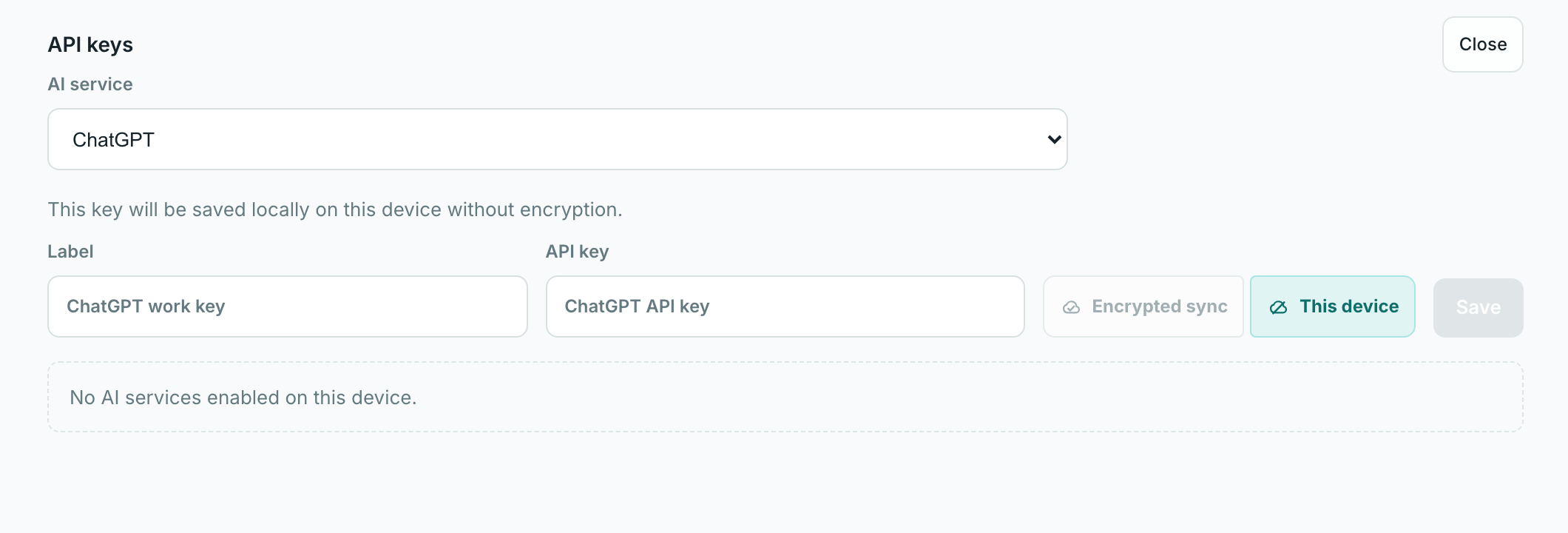
- Open Lerix.
- Use Add API key, or open Settings > Connections.
- Select the AI service: ChatGPT, Claude, Google, Grok, or OpenRouter.
- Add a label such as "OpenAI personal" or "Claude work".
- Paste the API key.
- Set storage to Encrypted sync when signed in, or This device for local-only storage.
- Save the key.
Edit which models appear
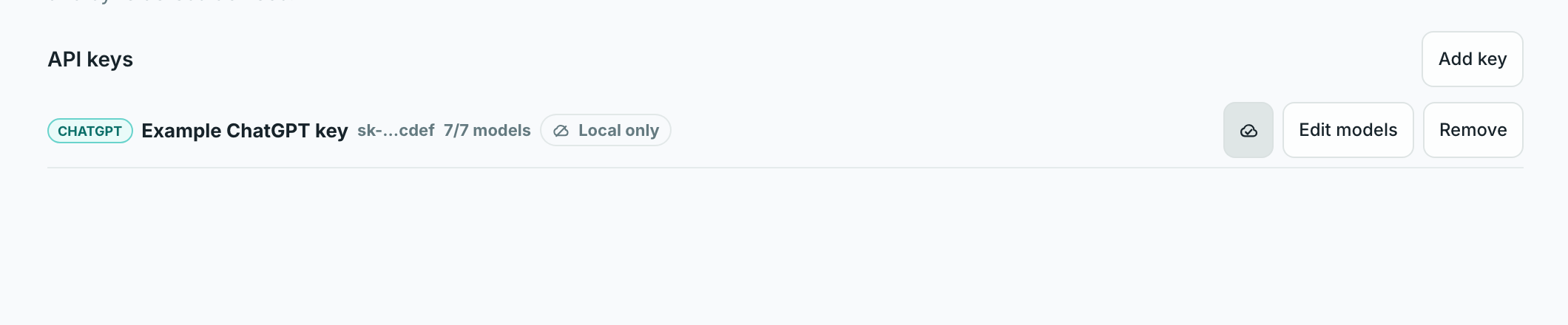
Saved keys include a redacted hint, enabled model count, storage mode, and connection actions.
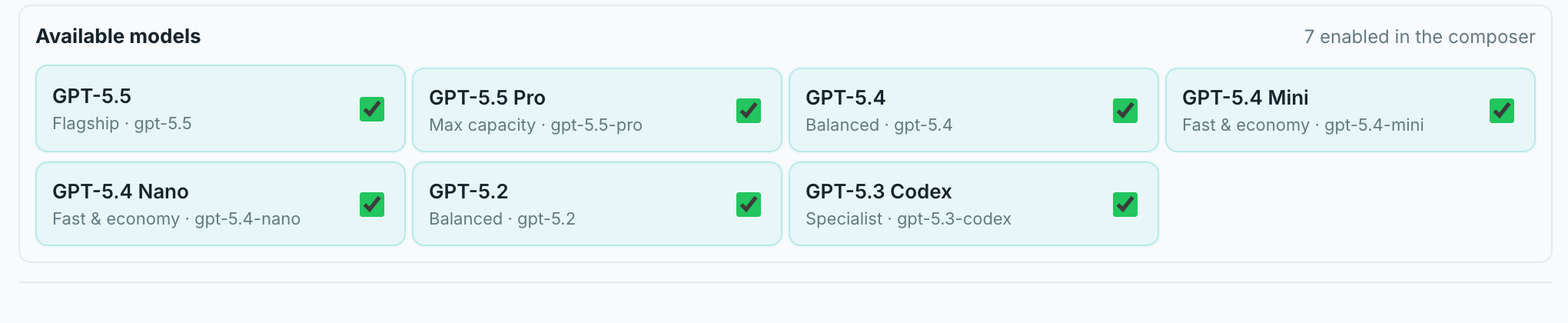
Edit models controls which models are available in the composer for that access path.
Choose a model in chat
The model button opens the model menu. The menu groups available models by AI service, so ChatGPT, Claude, Google, Grok, and OpenRouter stay separate.
When an AI service has more than one access path, choose the key or session from Access before selecting a model. ChatGPT API-key access and Codex auth appear together under ChatGPT when both are available.
Save a favorite model config to make it the starting setup for future new chats. Favorite #1 is used first; if it is not usable, Lerix falls back to the first connected model it can use.
Use the star beside a model to save a favorite model config. Favorites keep the model, access path, and supported model controls together for fast switching.
Automatic model discovery
For Google API keys, Lerix checks the Gemini model list available to that key. When Google exposes a new Gemini text model through the standard content-generation API and Lerix already supports that model architecture, Lerix can add it to that key automatically instead of waiting for a Lerix app update.
Discovery is limited to Gemini text-generation models that Lerix can stream safely. Embedding, audio, video, image-only, live, and other specialized Gemini model families stay hidden unless Lerix has a verified path for that type of request.
For OpenRouter API keys, Lerix checks OpenRouter's model list for text-input, text-output chat models. OpenRouter embedding, image, audio, speech, video, rerank, and other specialized model families stay hidden unless Lerix has a verified request path for that type of model.
Where to get API keys
API keys come from the AI service, not from Lerix. Use the service's own key page when you need to create, rotate, delete, or troubleshoot a key.
| AI service in Lerix | Create or manage keys | Setup help |
|---|---|---|
| ChatGPT / OpenAI | OpenAI Platform API keys | Where to find an OpenAI API key |
| Claude / Anthropic | Anthropic Console API keys | How to access the Claude API |
| Gemini / Google | Google AI Studio API keys | Gemini API key docs |
| Grok / xAI | xAI Console | xAI quickstart |
| OpenRouter | OpenRouter API keys | OpenRouter quickstart |
FAQ
Is adding a ChatGPT key different from adding a Gemini key?
No. The API-key setup uses the same fields for each AI service: service, label, key value, and storage mode.
Does Lerix support OpenRouter?
Yes. Add an OpenRouter API key, then use OpenRouter Auto Router or compatible text chat models discovered from that key. Lerix does not expose OpenRouter image generation or provider-native web browsing paths until those paths are verified.
Can I use a ChatGPT Plus or Pro subscription instead of an OpenAI API key?
A ChatGPT Plus or Pro subscription is not the same thing as an OpenAI API key. For OpenAI API-key setup in Lerix, use an OpenAI API key. Separately, the Lerix Mac app supports Codex auth for supported ChatGPT/OpenAI models, and Pro accounts can use same-account Codex Relay from an open desktop. See Codex auth and relay.